Introduction
The Accreditation Web Portal (AWP) is a centralized online system developed for Central Luzon State University (CLSU). It allows authorized accreditors to securely browse and review accreditation documents for academic programs.
Accreditation bodies visit CLSU on scheduled dates to evaluate each program. Instead of sifting through physical binders or scattered files, this portal organizes all evidence — narrative profiles, extent of compliance reports, and supporting documents — into one easy-to-navigate dashboard.
Only pre-registered accreditors with a valid
@clsu.edu.ph Google account can access program contents. You will be added by the system administrator before your scheduled visit.
Accessing the Portal
Open your preferred web browser (Chrome, Firefox, or Edge) and go to the portal URL provided to you by CLSU.
- A stable internet connection
- A @clsu.edu.ph Google account (already registered with the system)
- A modern web browser with cookies and JavaScript enabled
Once the page loads, you’ll see the landing page showing the portal title and a list of academic programs grouped by survey type.
Browsing Programs
The landing page displays all available programs organized by Survey Type (e.g., "4th Survey — 2nd Cycle", "2nd Survey").
What you’ll see
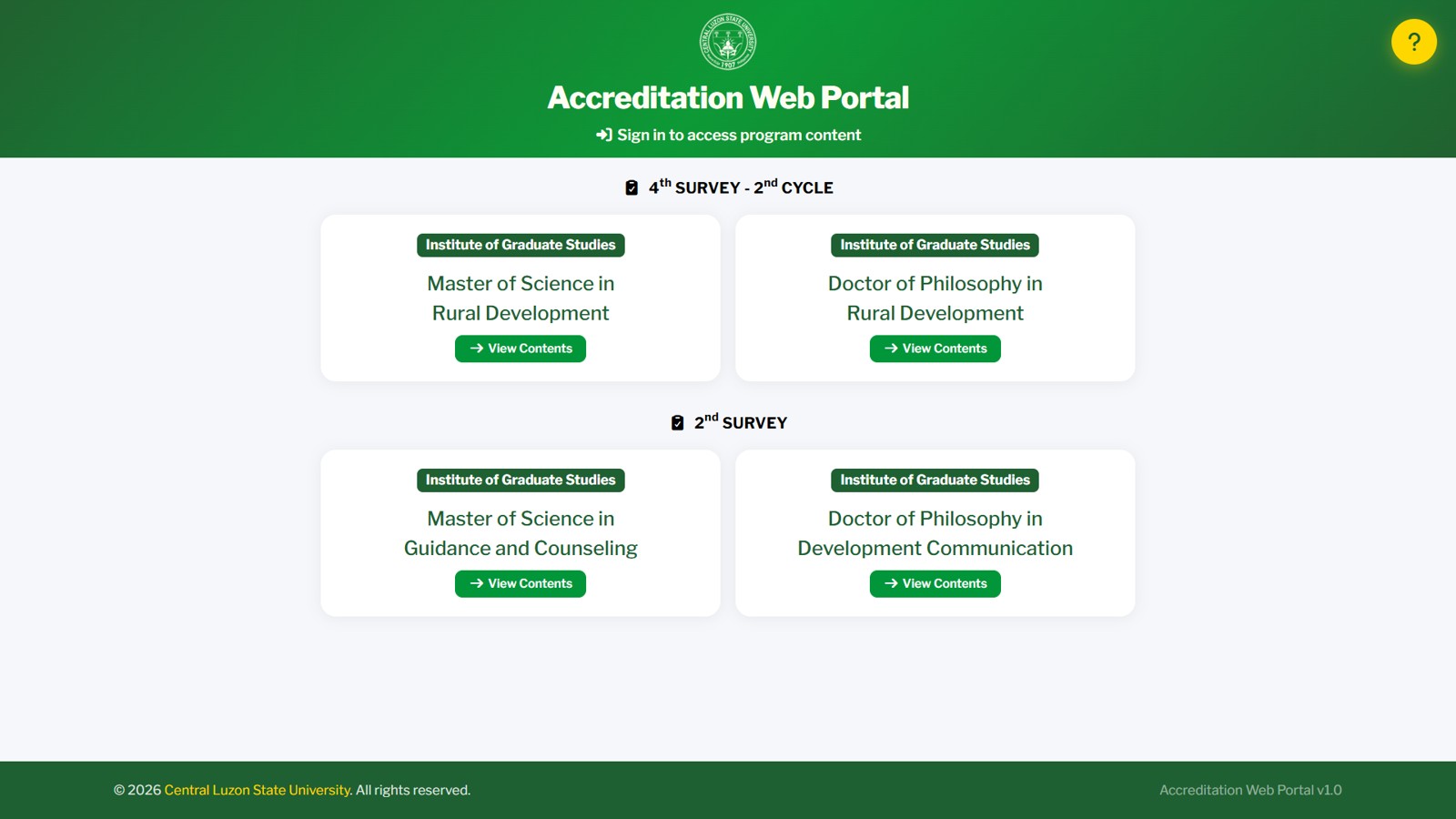
- Each program is shown as a card with the college name and program title.
- Programs are sorted so that unfinished programs appear first, then alphabetically by title.
- A "View Contents" button is available on each card.
Signing In with Google
When you click a program card, a pop-up window will appear asking you to sign in.
The Sign-In Dialog
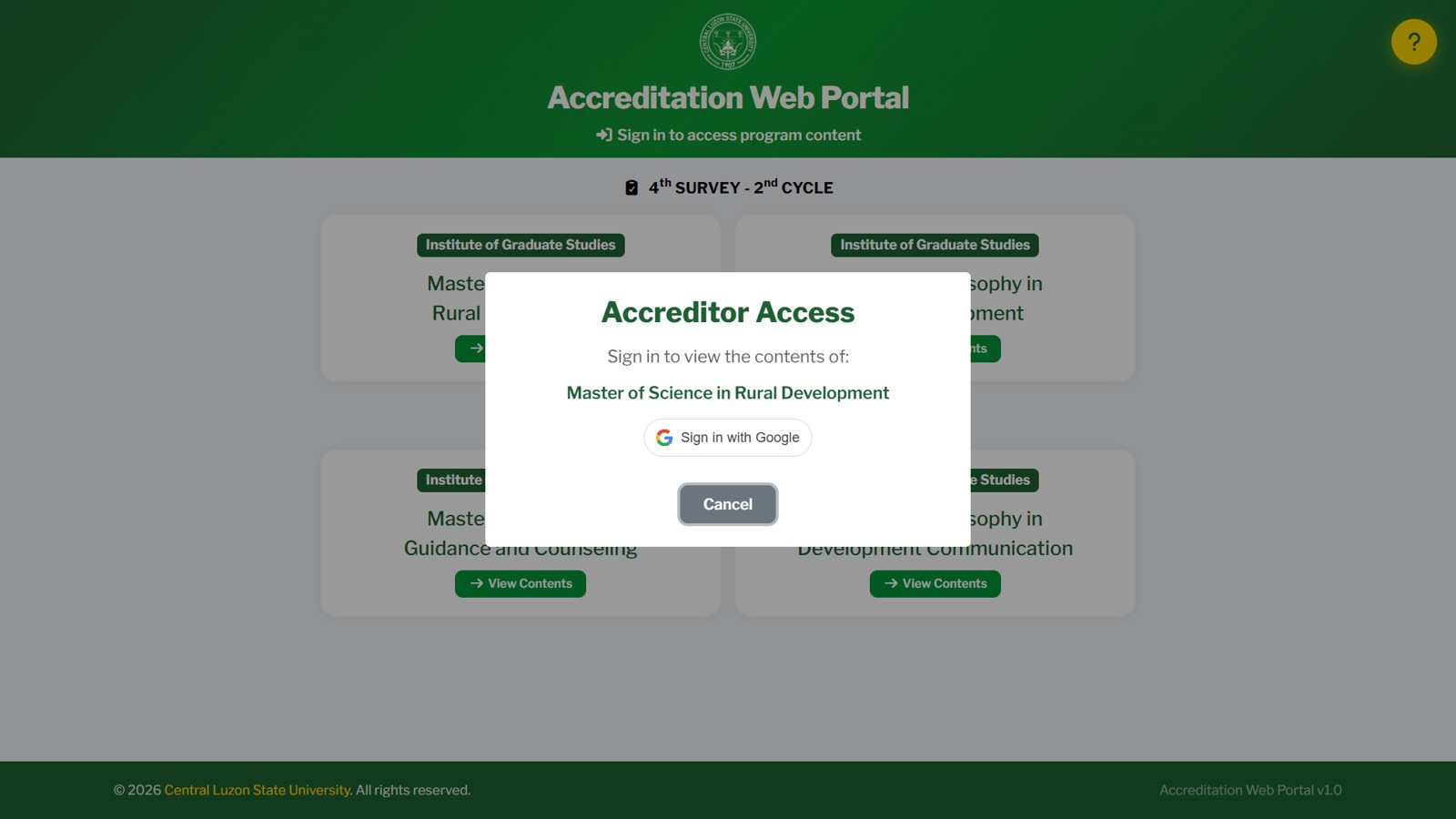
- A Modal Screen will appear displaying the program name you selected.
- Click the Google Sign-In button (shown as "Sign in to Google").
- Select your
@clsu.edu.phGoogle account from the list. Enter the password if needed.
@clsu.edu.ph that have been pre-registered for the specific program are allowed access. If you’re not authorized, you’ll see an "Access Denied" message.
After Successful Login
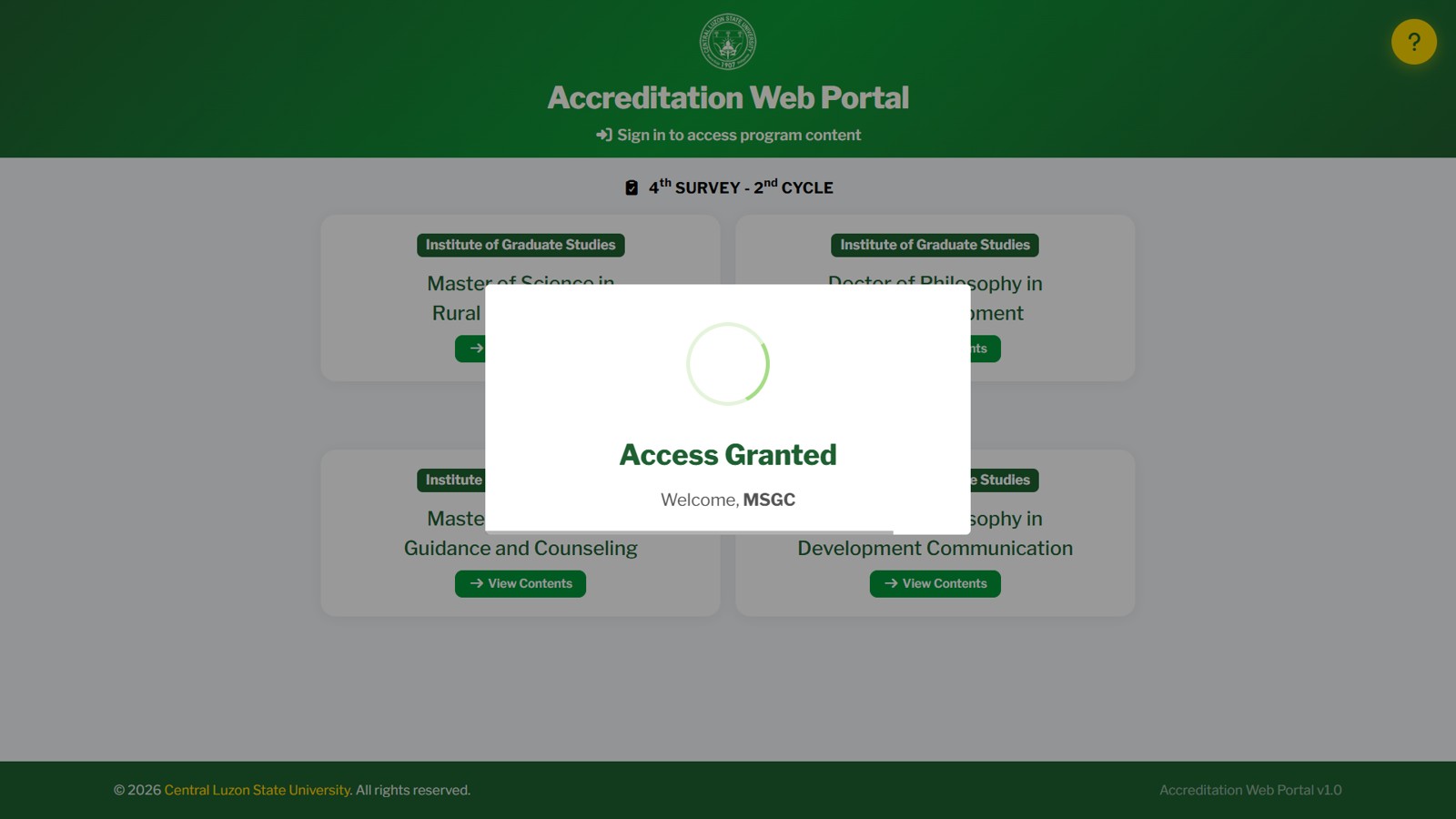
- You’ll see a brief "Access Granted" confirmation.
- You will then be automatically redirected to the Program Dashboard for that program.
If Login Denied
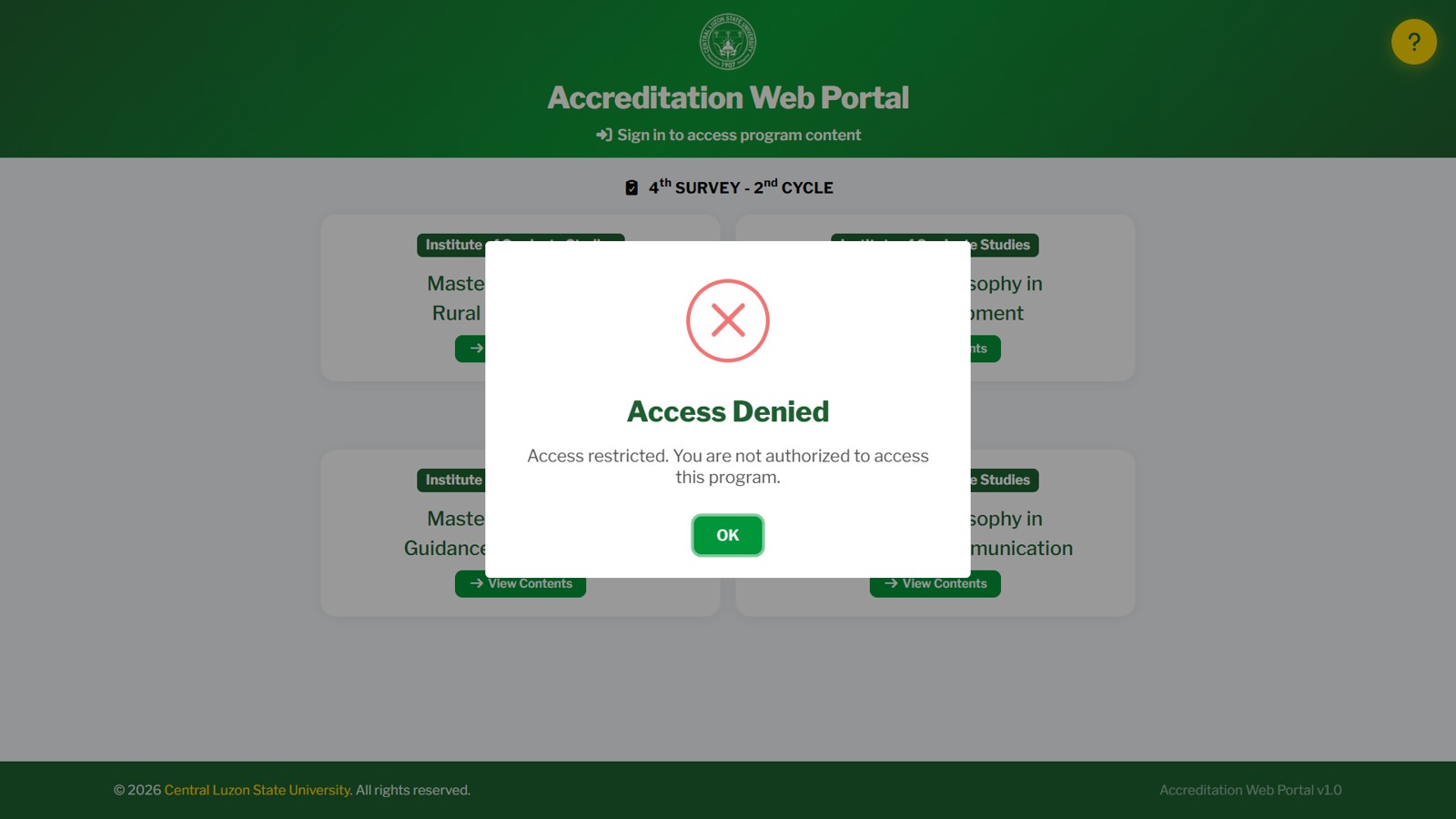
- You’ll see a brief "Access Denied" confirmation.
- Click OK button and you will then be automatically redirected back to the Main Page.
The Program Dashboard
Once signed in, you’ll land on the Program Contents page.
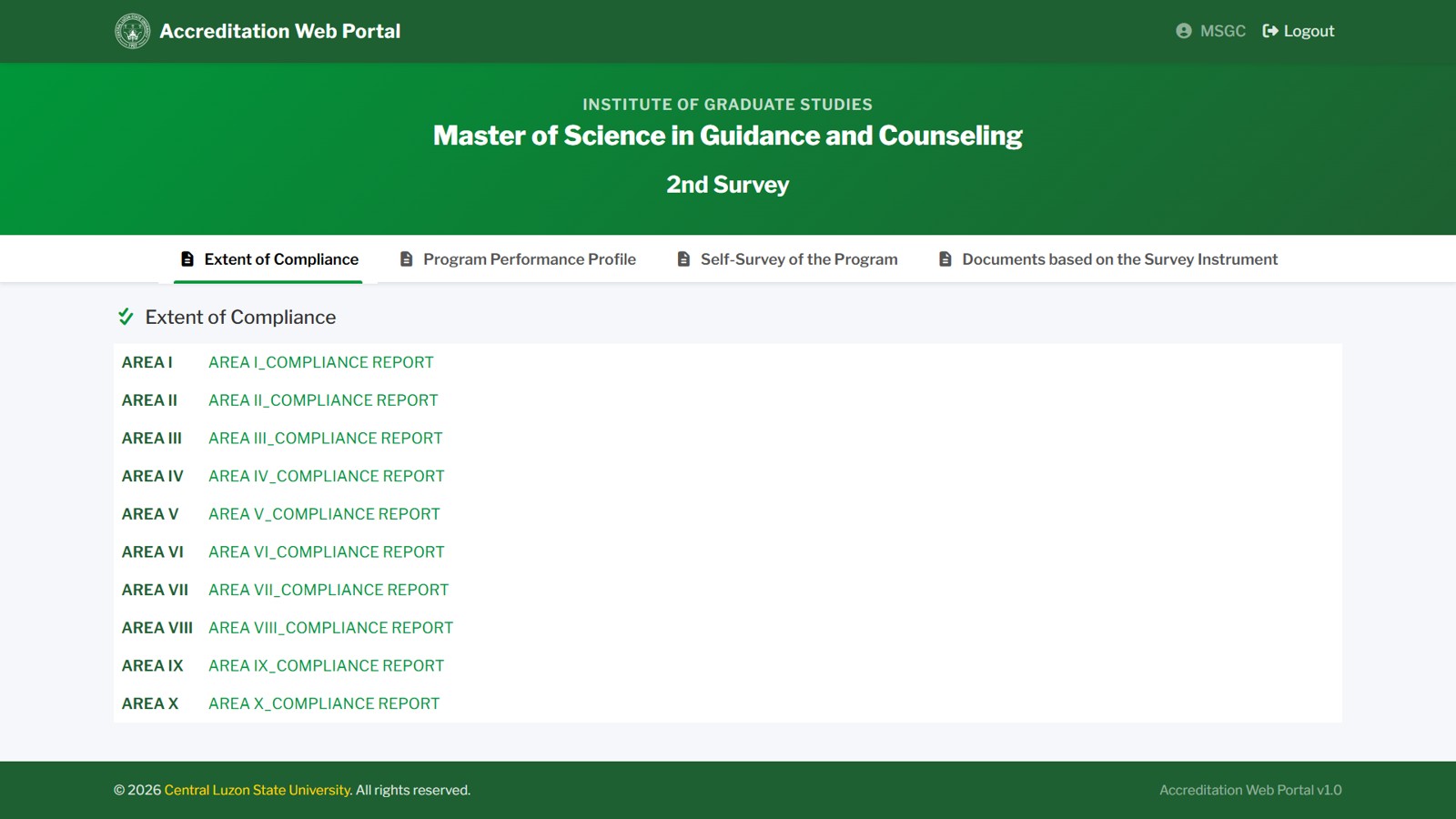
Shows the college name, program title, and survey type badge — a quick reference so you always know which program you’re viewing.
Navigation Tabs
A row of tabs below the header lets you switch between content sections. Typical tabs include:


Click any tab to load its content. The active tab is highlighted in green.
Accessing the Documents
The Documents are listed from Area I to IX and its Title. Click the title to open the shared document or folder stored in the Google Drive. These may include scanned forms, certificates, reports, and other relevant files.
Logging Out
When you’re done reviewing documents, it’s important to log out — especially if you’re using a shared or public computer.
- Look for the "Logout" link in the top navigation bar (right side).
- Click it. Your session will be securely destroyed, and you’ll be redirected back to the landing page.
Tips & Troubleshooting
Best Practices
- Use Google Chrome or Mozilla Firefox for the best experience.
- Ensure you’re signed into the correct
@clsu.edu.phGoogle account in your browser before clicking a program card. - Bookmark the portal URL for quick access during your accreditation visit.
Common Issues
@clsu.edu.ph email. Contact the system administrator to have your account added.
Need Help?
If you continue to experience issues, please contact the CLSU Accreditation Office or the portal administrator.
You’re All Set!
You now know how to navigate the Accreditation Web Portal.
Click the button below to return to the portal and start browsing.